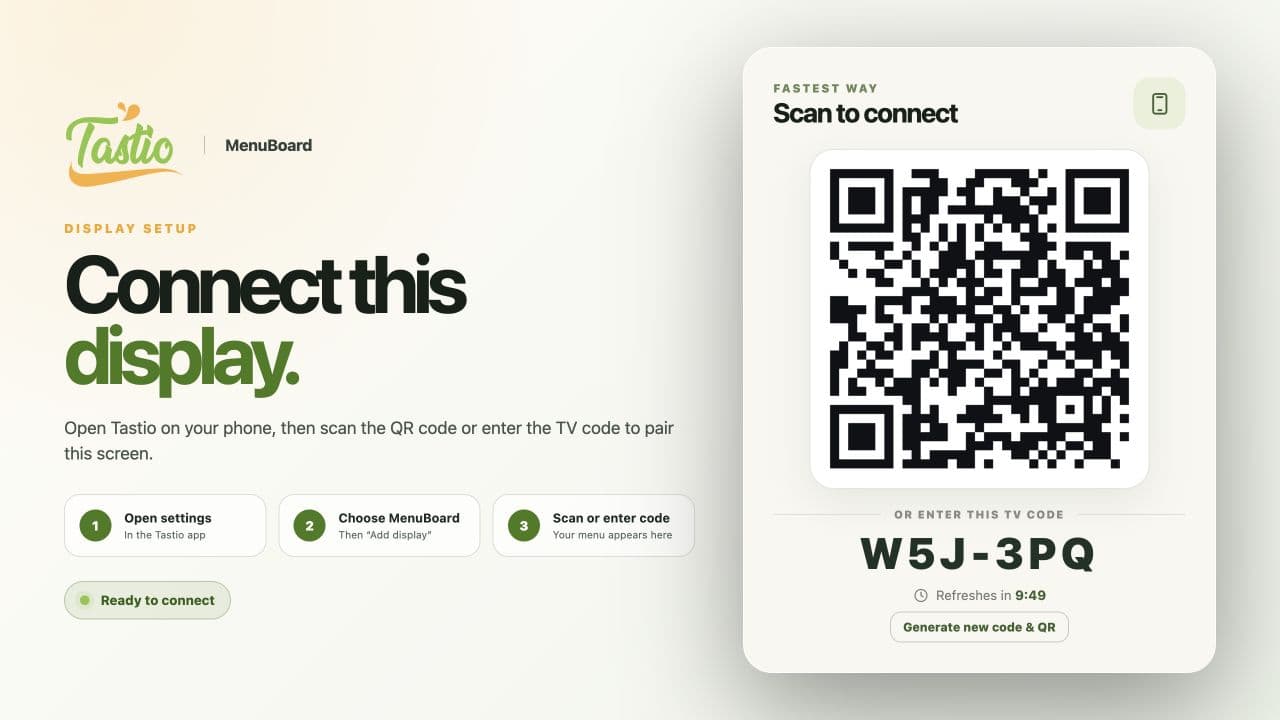
Pair a screen in a few steps
Use the device activation code or QR flow to connect the player to the correct store and screen group.
Your menu, on display
Turn your screens into clear, branded menus. Manage products, prices, and promotions through Tastio MenuBoard and keep the last saved menu available when the connection drops.
Built for the everyday
Practical features shaped by the work behind the counter and the people doing it.
Use the device activation code or QR flow to connect the player to the correct store and screen group.
The player fetches revisioned menu snapshots so changes to the configured menu reach the display automatically.
Run image and video campaigns, featured products, new-product panels, and choice spotlights on assigned screens.
Make product prices easy to read and show configured cash/card pricing alongside menu photos and specials.
Control category rotation, page rotation, product density, brand colors, and sold-out visibility.
The player keeps its last known good menu snapshot and cached assets for offline playback.
For restaurant operators
Present restaurant categories, daily specials, product photos, and promotions in a format made for a screen across the room.
Getting connected
Use a supported Fire TV device. Current Fire OS 7+ and older Fire OS 5/6 devices use different player builds.
Approve the screen’s activation code, then assign its screen group and display content.
Choose categories, promotions, and rotation settings; the player downloads the configured snapshot.
Hardware note: Fire OS 7+ uses the current Android player; Fire OS 5/6 uses the legacy player. Vega OS requires a separate client.
Built by operators
Start with your business, check your hardware, and connect your operation.
No contracts. Real people.