Show the right menu on each screen
Assign the display to the store and screen group it serves.
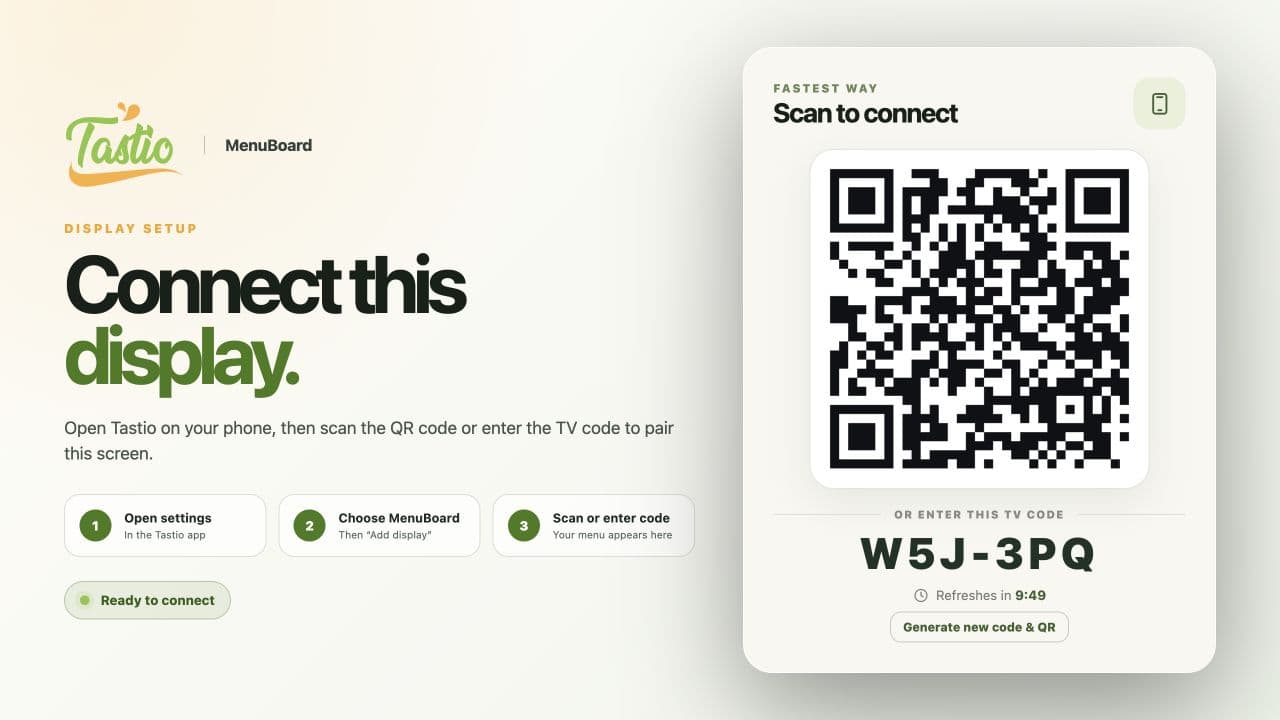
Use the device activation code or QR flow to pair the player.

Your menu, on display
Turn your screens into clear, branded menus. Manage products, prices, and promotions through Tastio MenuBoard and keep the last saved menu available when the connection drops.
$0/month in software fees through cash discount.
Processing terms are confirmed during onboarding. Bring your own compatible devices.
During the shift
Display your menu, update configured prices, and schedule promotions from Tastio.
Assign the display to the store and screen group it serves.
Use the device activation code or QR flow to pair the player.
Send menu changes to the display from your Tastio setup.
Changes to your configured menu reach the display automatically through versioned menu updates.
Show guests the featured products you choose for each screen.
Run image and video campaigns, featured products, new-product panels, and choice spotlights on assigned screens.
Give guests the configured pricing before they order.
Make product prices easy to read and show configured cash/card pricing alongside menu photos and specials.
Choose how many products guests see and how the display rotates.
Control category rotation, page rotation, product density, brand colors, and sold-out visibility.
Keep showing the last saved menu during a connection issue.
The player keeps its last known good menu snapshot and cached assets for offline playback.
For restaurant operators
Present restaurant categories, daily specials, product photos, and promotions in a format made for a screen across the room.
SETUP AND TRAINING
Use a supported Fire TV device. Current Fire OS 7+ and older Fire OS 5/6 devices use different player builds.
Approve the screen’s activation code, then assign its screen group and display content.
Choose categories, promotions, and rotation settings; the player downloads the configured snapshot.
Hardware note: Fire OS 7+ uses the current Android player; Fire OS 5/6 uses the legacy player. Vega OS requires a separate client.
Setup with our team
Start with your menu, devices, and cash-discount setup. We’ll help you prepare the register and train your team.
No contracts. Personal setup and training.